Testing skills
Most OVOS skills ship a list of golden utterances: sentences with the skill and intent that should handle them. The skill's CI checks them against the skill alone. ovos-tui-client sends the same sentences to your real, running OVOS, with every other skill, fallback and pipeline plugin present. That catches what an isolated test can't: another skill grabbing the sentence, a pipeline plugin getting there first, or a skill that fails to load.
These are real utterances
The test sends the sentences to your live OVOS. Timers, alarms,
media and so on really happen. When the run ends, the TUI sends
stop to every session the run used, so nothing it started keeps
running.
Run all tests for a skill
Open the palette (Ctrl+P), type test and part of the skill's name,
and pick Test: <Skill> - All.
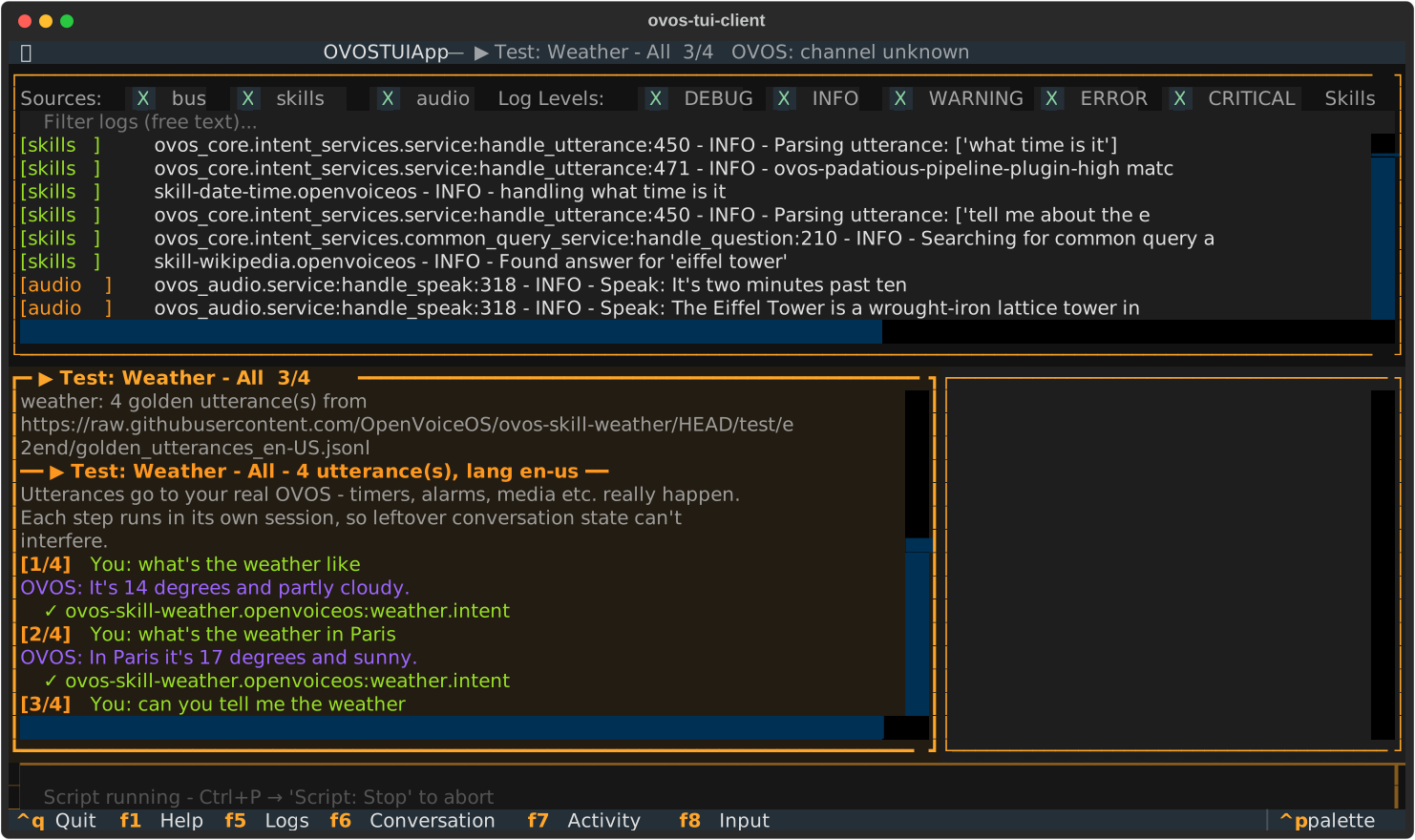
While a run is going:
- The conversation pane gets a heavy yellow border, and its title
shows the progress (
▶ Test: Weather - All 3/4). The header shows the same. - The input box is disabled, so your typing can't get mixed into the run. The input's placeholder tells you how to stop the run.
- Each sentence is written as if you typed it, but numbered:
[3/4] You: …. OVOS's reply follows, then the verdict.
| Verdict | Meaning |
|---|---|
✓ ovos-skill-weather.openvoiceos:weather.intent |
The expected skill and intent handled it. Without an intent label only the skill is checked and named. |
✗ expected …, got … |
Another skill or intent answered. |
⏱ no response within the time limit |
Nothing handled it within 30 seconds. |
→ <what handled it> |
A script line with no expected skill: nothing to check, but you see who answered. |
The run ends with a summary line and a list of the sentences that failed:
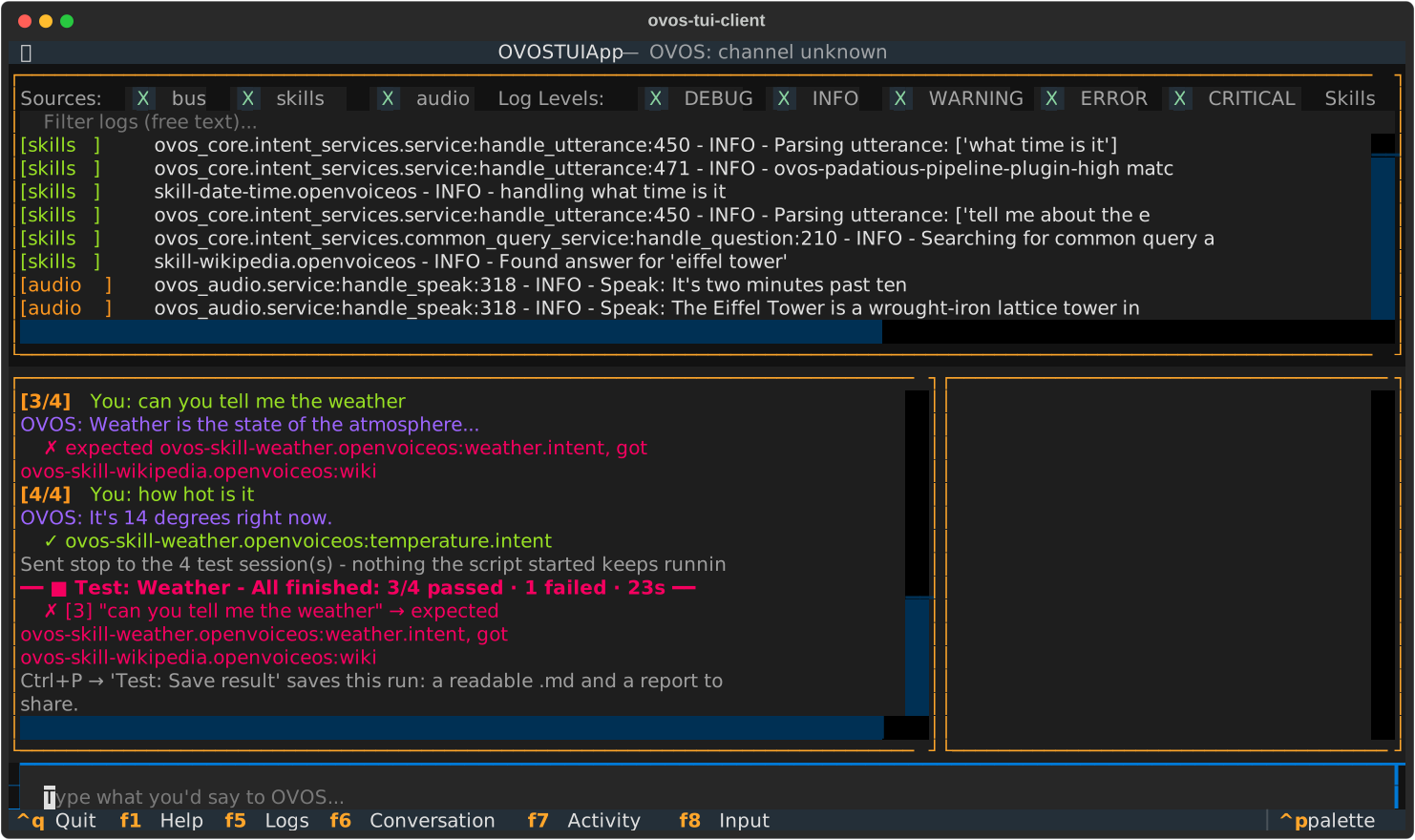
Here, "can you tell me the weather" was picked up by Wikipedia instead of the weather skill. That is exactly the kind of collision this is for.
Test: All installed skills runs every installed skill that has
test utterances, one after the other.
Once a skill has been run, its palette entry shows how many sentences
it has, e.g. Test: Weather - All (14). Skills with nothing to test
in your language disappear from the list after the first try.
Run only some of the tests
Some skills have more than a hundred sentences. Pick
Test: <Skill> - Choose to get a checklist:
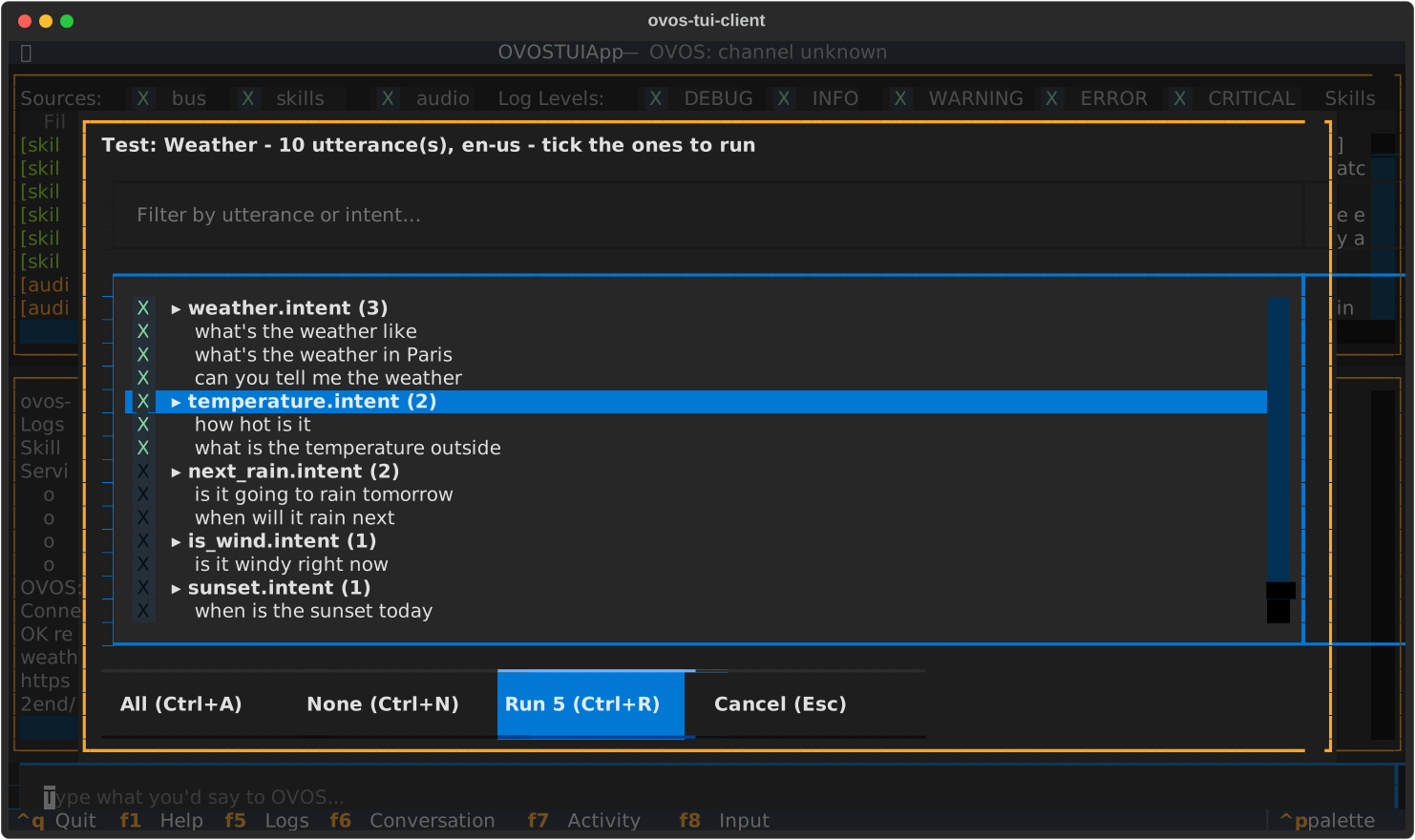
- Sentences are grouped by intent. Ticking a group header ticks the whole group.
- Type in the filter box to narrow a long list by sentence or intent name. What you already ticked stays ticked.
Spaceticks,Ctrl+Aticks everything visible,Ctrl+Nclears,Ctrl+R(or the Run button) runs,Esccancels.
After a chosen run, two more entries appear in the palette:
Test: <Skill> - Last selection (N)runs exactly the same subset again, without the window. Handy while you fix one intent and re-test it again and again.Test: <Skill> - Save last selection as scriptsaves the subset as<skill>-selection.jsonlin your scripts folder, so it survives a restart asScript: <skill>-selection. See Your own scripts.
You can also start tests from a skill's About window: t for All, c
for Choose. See Skills and About windows.
Save the result
After a run, Ctrl+P → Test: Save result… (<title>). A small window
asks for the three things ovos-tui-client can't know by itself:
- Release channel: pre-set to the channel this install runs, and the
window says how it was found. Change it only if you know better, or
leave it
unknown. See Release channels. - Notes (optional): what the skill needed or what is special about the
setup:
API key set,Mark II,Raspberry Pi 5 with ReSpeaker. No names, addresses or keys: the report is meant to be shared. - Include OVOS's replies: off. Replies can hold personal data ("14 degrees in your town"), and a store will refuse a report with them. Tick it only for a report you keep yourself.
Two files are saved in ~/.local/share/ovos-tui-client/results/, named by
date, time and title:
….md: to read, or paste into an issue as it is: the summary line, when it ran, channel and language, the failures, a table of every step (expected, what handled it, what OVOS said) and the version of each skill tested.….report.json: the report to share with a skill's maintainer or a skill store, the sameovos-test-report/1file a headless run writes: the installed versions, the channel, machine type, language, STT and TTS plugin names, and each sentence with what handled it; no hostname, IP address, user name or settings. Also what to compare two runs with, e.g. testing against alpha, or before and after a fix.
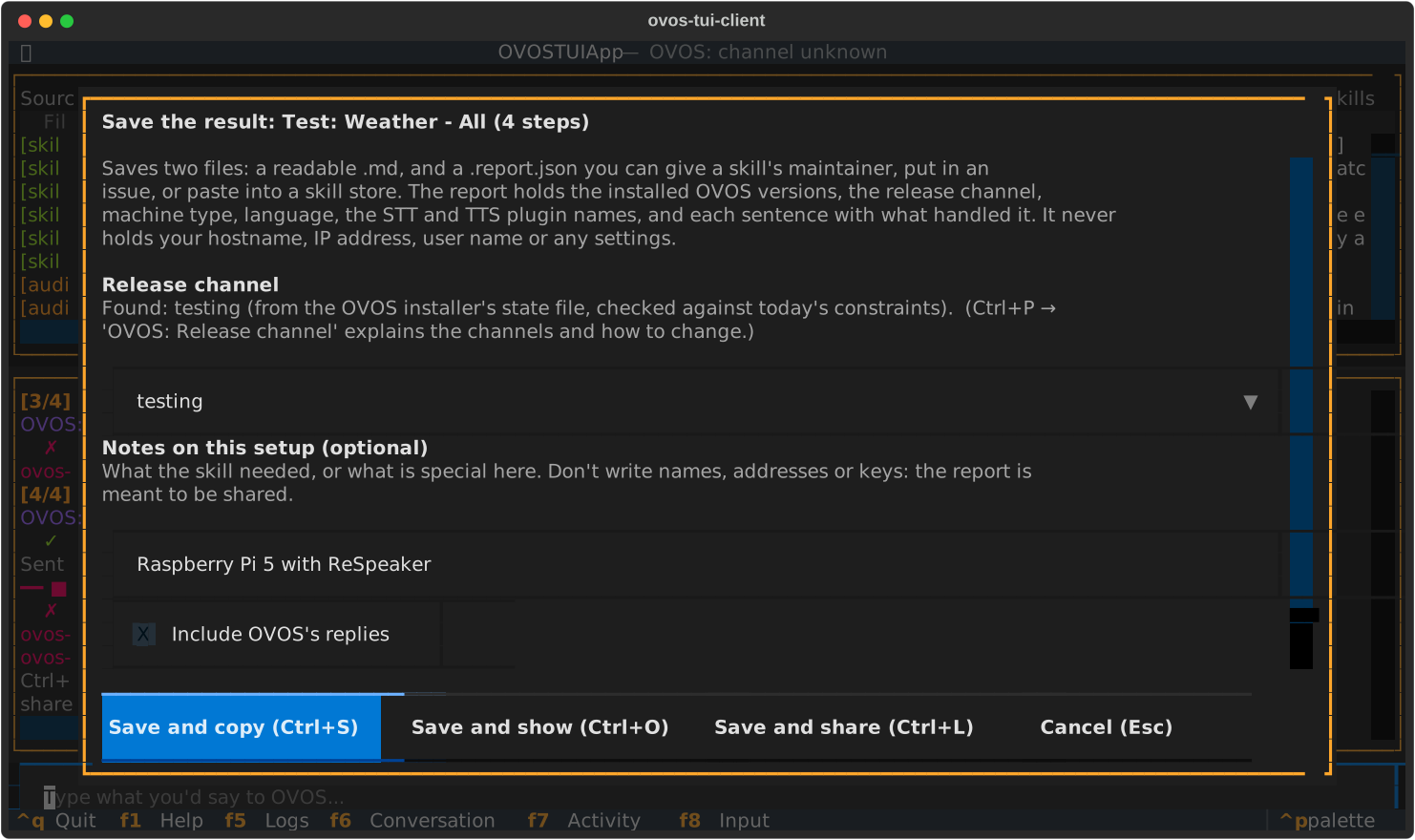
The buttons:
- Save and copy (
Ctrl+S): also copies the report to the clipboard. Not every terminal passes that on: it uses the OSC 52 escape code, which GNOME Terminal / Ptyxis (Fedora's and Ubuntu's default) ignore, over ssh or not. If nothing arrives, use Share. - Save and show (
Ctrl+O): shows the report as text, to read before you share it. Copy (Ctrl+C) there tries the clipboard again, and Share (Ctrl+L) gets it out another way. -
Save and share (
Ctrl+L): gets the report to your own computer, from any terminal and over ssh. A window shows:- a short link: Ctrl+click it (Ctrl+Shift+click in some terminals), or select it with Shift + mouse and paste it in your browser. The page has Copy report, Download report.json and, when a store link is set, Open detailed page, the store's page with the report filled in;
- an
scpcommand to fetch the file.
The link works while the window is open (at most 15 minutes); Stop sharing (
Esc) ends it. If your terminal can't click or select anything inside an app, Show outside the TUI prints the same where the terminal's own links and selection work. See Getting the report off the device.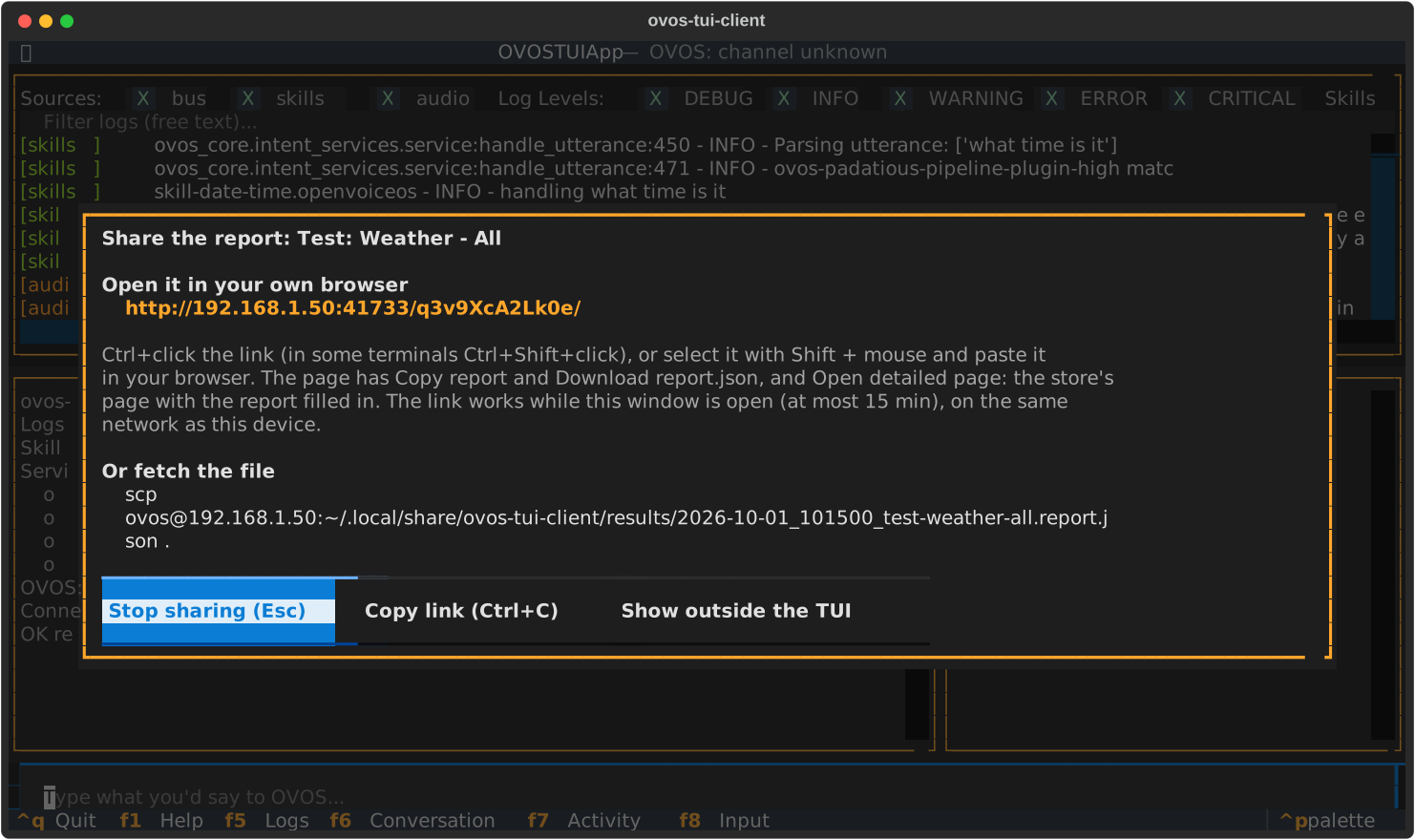
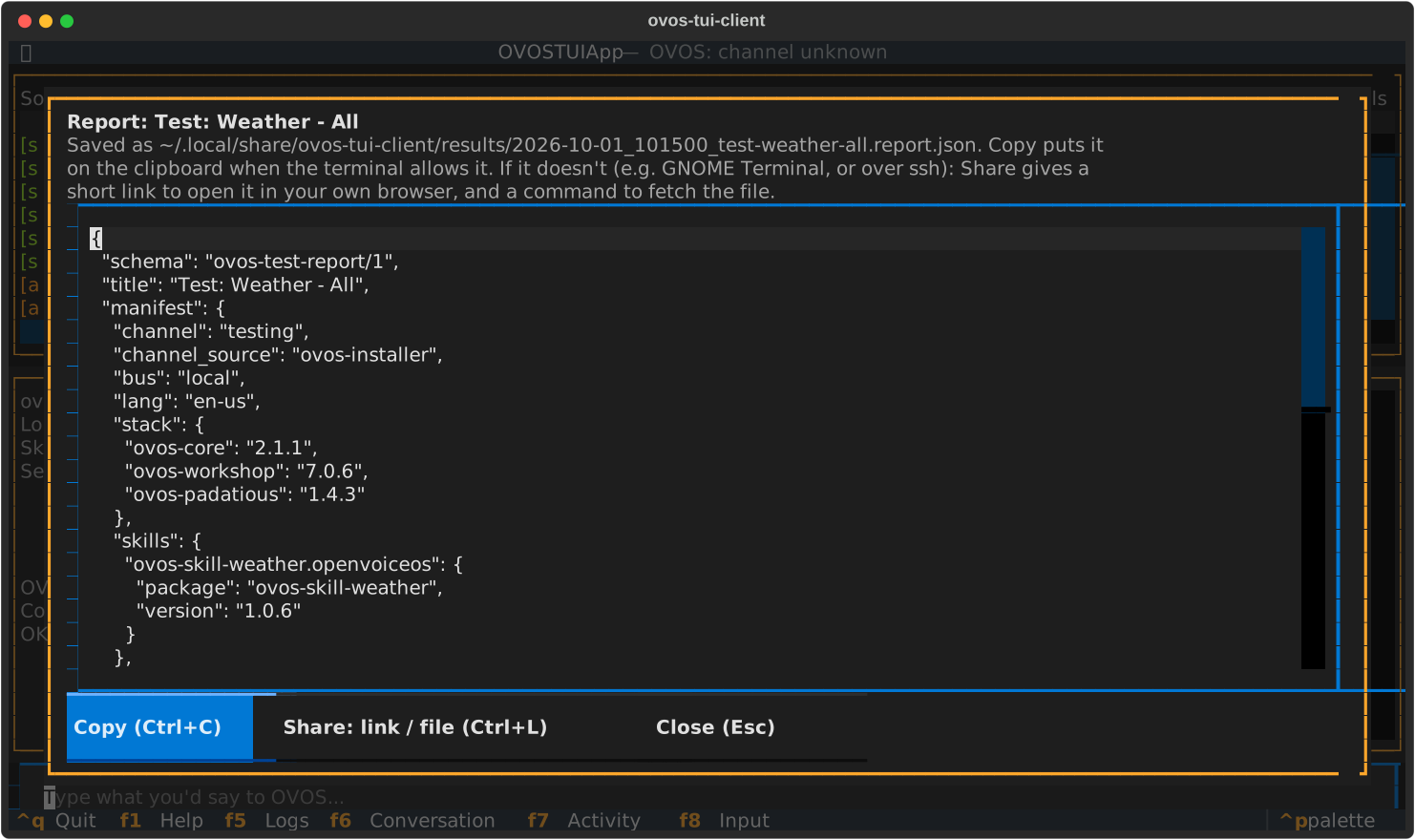
Ctrl+P → Test: Show last result (<title>) shows the report again,
and Test: Share last result shares it. Only the last run can be saved,
and only until the TUI is closed.
A skill store's report link
The first time you share while no store link is set, the TUI asks for one. It's the link a skill store gives in its instructions; with it, the share page gets an Open detailed page button that opens the store's page with your report filled in. ovos-tui-client never submits anything: you check the report on the store's page and submit it there yourself.
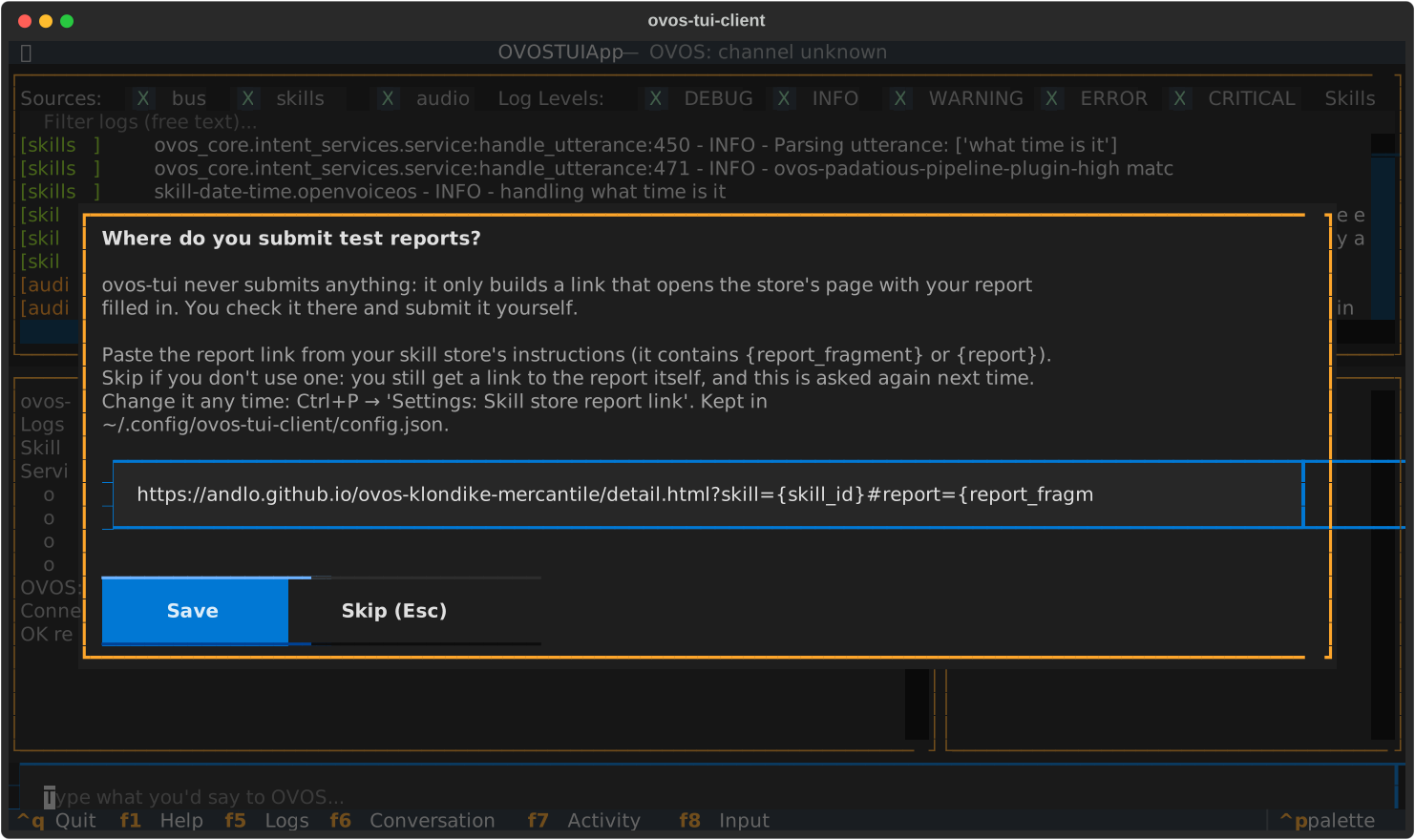
Skip if you don't use a store: you still get the link to the report
itself, and it's asked again next time. Set or change it any time with
Ctrl+P → Settings: Skill store report link. It's kept as submit_url
in ~/.config/ovos-tui-client/config.json, shared with
headless runs.
When OVOS is slow
OVOS handles one sentence at a time. When a step gets no answer in 30 seconds, OVOS is usually still busy with it, e.g. a fallback skill waiting for an online service, and every sentence sent meanwhile would only queue up behind it and time out too. So after a timeout the run waits, up to 5 minutes, for OVOS to finish that sentence before it sends the next one, and says so in the conversation pane. The step still counts as a timeout; its line says how long OVOS took and what handled it in the end.
Stop a run
Ctrl+P → Script: Stop running script. The steps that already
ran are still summarised.
What counts as a pass
Only routing is checked: which skill and intent handled the sentence, not the wording of the reply.
A step is over when OVOS says so (ovos.utterance.handled on newer
ovos-core). If that doesn't come, the TUI uses handler-complete or
intent-failure. Failing those, once something has matched, it waits
for a few quiet seconds on the bus; ovos-core 2.1.x sends no end-marker
for pipeline plugins or converse captures. After 30 seconds the step
is marked as timed out. If OVOS started speaking, the TUI also waits
for speech to end, so replies don't overlap.
Each step is sent in its own OVOS session, like ovoscope's golden tests. A skill waiting for an answer in the default session, or the previous step's follow-up question ("shall I read you this one?"), can therefore not capture the next step.
Provider skills behind the reading pipeline (story and article
skills such as Andersen's tales) never match a sentence themselves: the
common-reading pipeline matches it, asks every provider, and then
fetches the story from the one it picked - after its own handler has
finished. The step waits for that fetch (up to 30 seconds; the pipeline
first announces the story, which can take a while) and counts
it as a pass when the story came from the expected skill. When another
provider was picked, the result says so: … read from
ovos-skill-grimm-tales.andlo.
After every step the TUI sends stop to that step's own session, so
nothing a step started (a story, "count forever", a metronome) goes on
under the next step. A story can take minutes to read, so once the
step has its verdict the TUI lets the story start and then stops it.
A skill stuck waiting in get_response() captures every sentence.
That is reported as such, instead of as a plain mismatch.
Where the test utterances come from
The test/ folder is not part of an installed skill package, so the
TUI looks in this order:
--golden-dir DIR(can be repeated): local checkouts, asDIR/<skill-repo>/test/end2end/golden_utterances_<lang>.jsonl. Use this while you edit a skill's golden file.- The skill's GitHub repository, at the tag of the installed
version (
v0.4.20,V0.4.20or0.4.20), found from the installed package's own metadata. That way the sentences and intent names match the code that answers them, also on a channel that runs an older release. The file is fetched fresh on each run and cached in~/.cache/ovos-tui-client/golden/. - If that release ships no golden file, the TUI uses the skill's
skill.jsonexamples (step 4) instead of the newest file, which may describe intents the installed version doesn't have. - Only when the installed version has no tag (a git install, say),
or the tags can't be read, is the repository's default branch
used. A headless report notes that in
steps_note. - That cache, when you're offline.
- The skill's
skill.jsonexamples, if there is no golden file for the installed version. Examples have no intent label, so they are only checked at skill level: "did this skill answer".
The language is the TUI's --lang. da-dk also finds da-DK and
da files.
The first line of a run says where the sentences came from, e.g.
weather: 4 golden utterance(s) from https://raw.githubusercontent.com/….