Skills and About windows
All installed skills
Ctrl+P → About: Installed skills (N), or
Skill: Activate / deactivate… (N). Both open the same window:
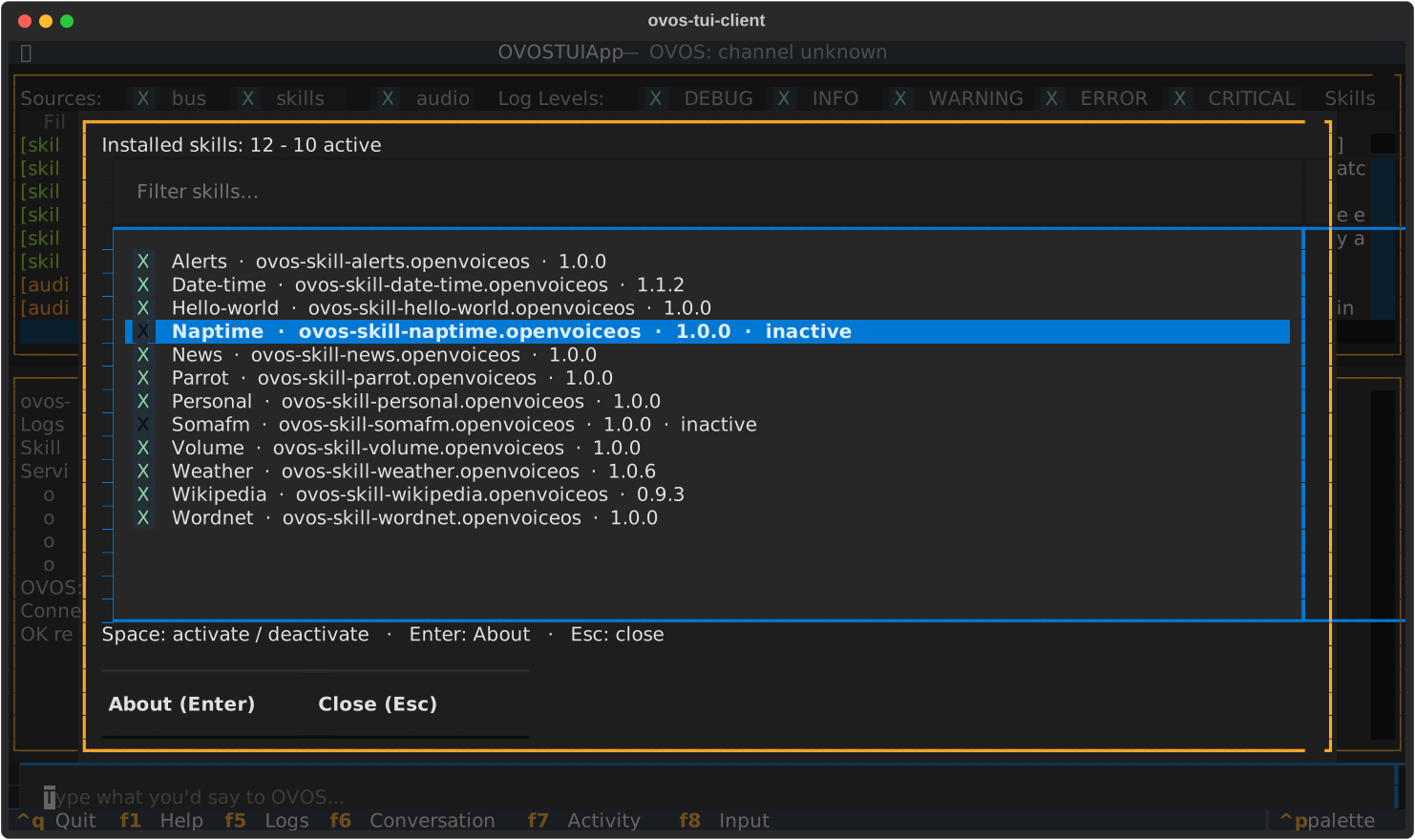
One skill per line: its name, id and installed version. The checkbox
is the skill's active state; inactive skills also say inactive.
| Key | |
|---|---|
Space |
Activate / deactivate the highlighted skill |
Enter |
Open the skill's About window |
| typing in the filter | Narrow the list |
Esc |
Close |
Activating or deactivating sends the request to OVOS and then asks
OVOS for its skill list again two seconds later. The conversation pane
then says now active (confirmed by OVOS), or OVOS reports it is
still inactive if the change didn't happen. The checkbox always shows
what OVOS reports.
Deactivated is not uninstalled
Deactivating unloads the skill from the running OVOS. The package stays installed, and activating it loads it again.
The palette also has one entry per skill,
Skill: <skill_id> (Active) / (Inactive), which toggles it directly.
About a skill
Ctrl+P → About: <Skill>, or Enter in the skills list:
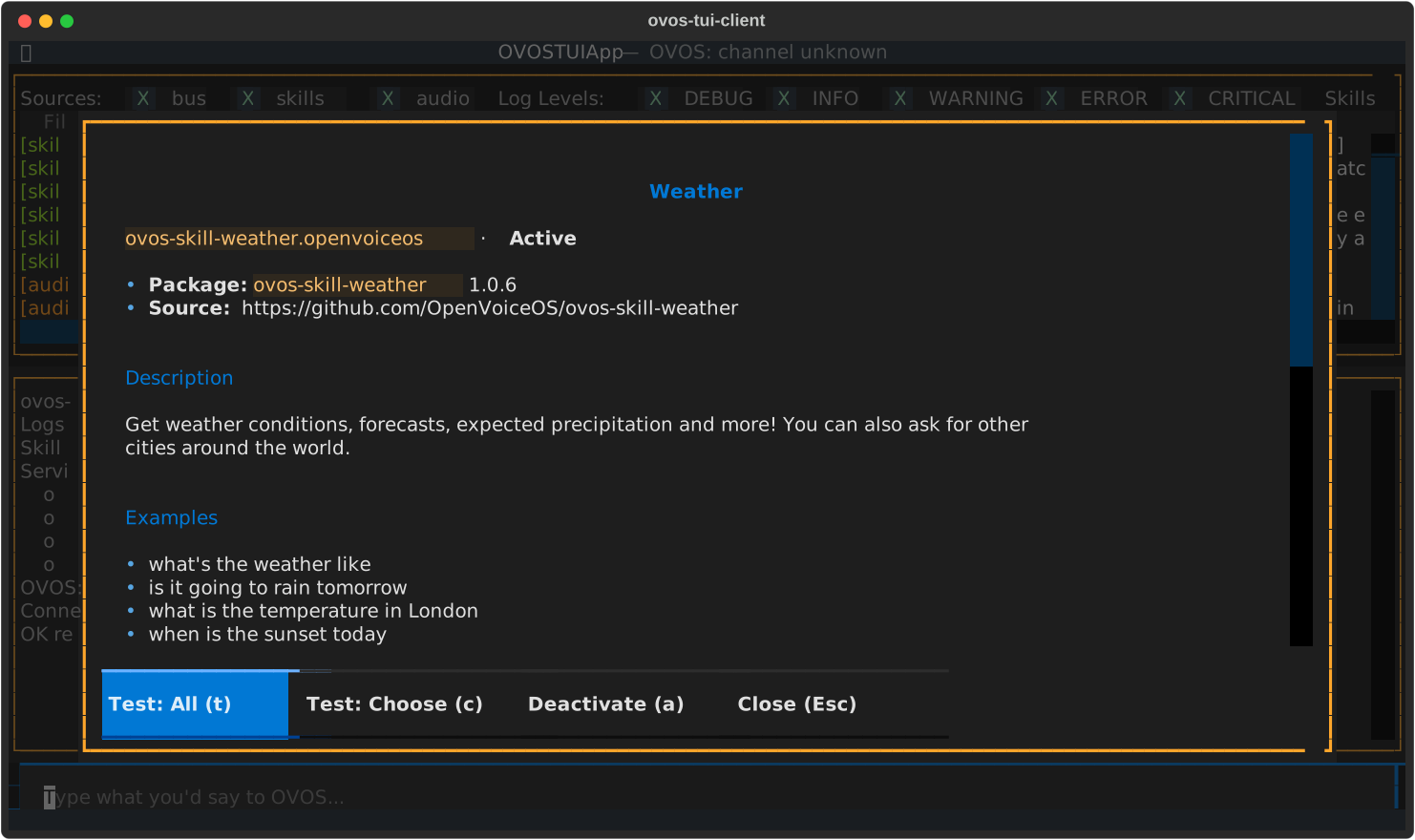
It shows what the skill says about itself in its own skill.json
(description, example phrases, tags), the installed package and
version, the source repository, and - further down - its golden test
coverage: how many test sentences there are per intent, in your
language.
| Key | |
|---|---|
t |
Test: All for this skill |
c |
Test: Choose for this skill |
a |
Activate / deactivate |
Esc |
Close |
The buttons at the bottom do the same.
About ovos-tui-client
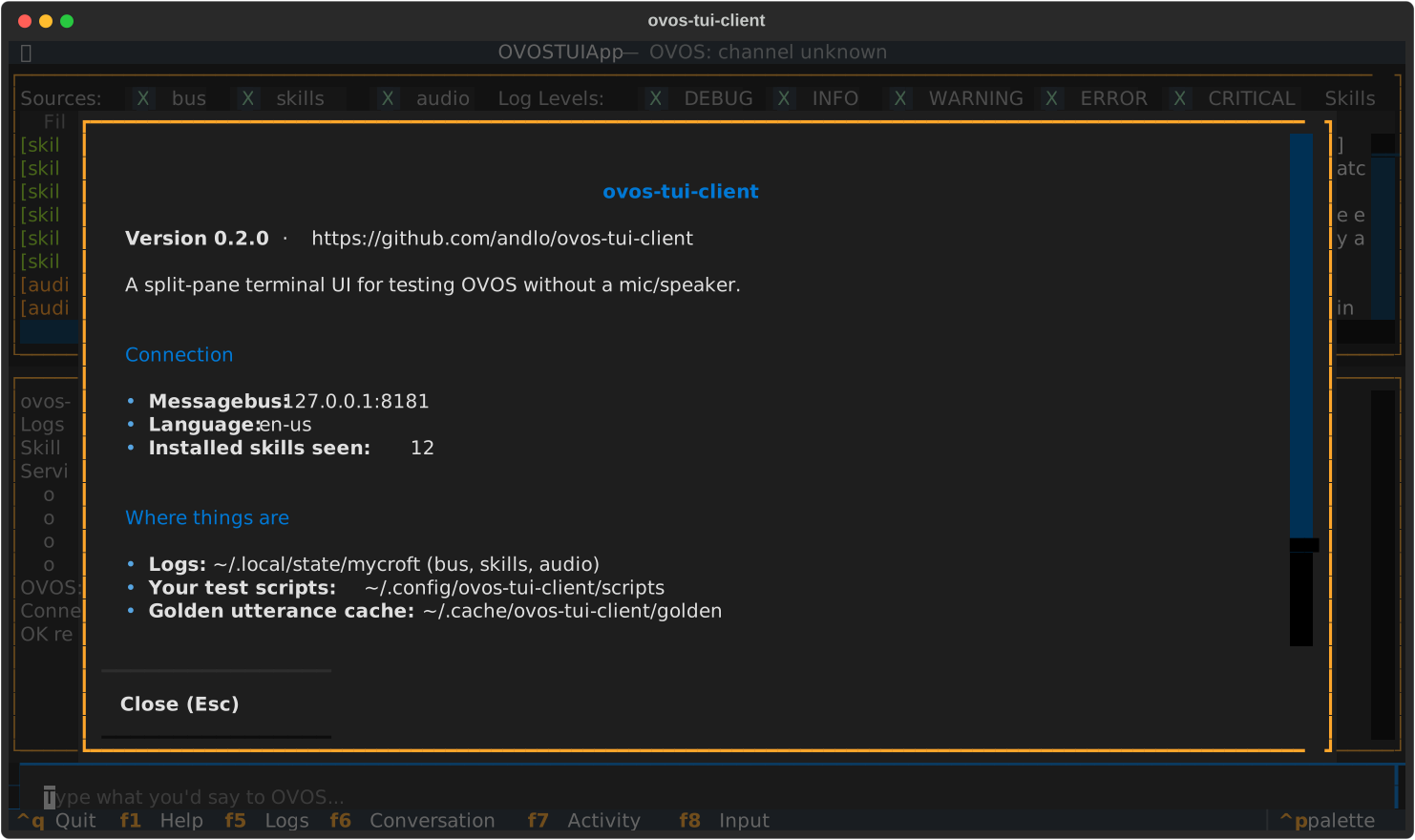
Ctrl+P → About: ovos-tui-client shows the version, which
messagebus and language it uses, and where it found the logs, where
your scripts go and where fetched test sentences are cached.
When skills are installed or removed
The TUI keeps its list of skills up to date while it runs. When OVOS
loads a new skill, or a skill is removed or deactivated, the list
refreshes by itself a few seconds later, and the conversation pane
says what changed, e.g. Skills changed: added Convert.
To refresh by hand, use Ctrl+P → Refresh: Skills and services.
It reads again what the TUI reads at startup: installed skills and
their state, example phrases, which skills have golden tests, and the
OVOS services. The conversation and your input history stay. Use it
if a skill still seems to be missing, e.g. on Docker installs with one
container per skill.
New log files (a service that started logging after the TUI) still need a restart of the TUI.
Example phrases
Type example in the palette to browse the example phrases of all
installed skills, e.g. Example: weather: what's the weather like.
Selecting one sends it to OVOS, as if you had typed it.